
Ori and the Blind Forest Controls: PC & Xbox Guide
Learn Ori and the Blind Forest controls for keyboard, mouse, and Xbox controllers, plus how to use Bash, save with Soul Link, and handle gravity puzzles.
Jump to

What Are the Ori and the Blind Forest Controls?
Ori and the Blind Forest controls become easier to follow once you separate movement, combat, and context-sensitive actions. Knowing your active layout helps prevent a misplaced jump or missed Bash from costing another trip through a difficult platforming section. This guide to Ori and the Blind Forest controls covers Xbox-style buttons, both PC keyboard layouts, and practical checks for abilities that seem unresponsive.
The game has three predetermined control styles: Controller, Keyboard, and Keyboard & Mouse. Open Help & Options, then Controls, to check your layout. The keyboard options also include QWERTY and AZERTY variants; the keyboard bindings below describe the QWERTY layouts.
| Control style | Move Ori | Jump | Spirit Flame | Bash |
|---|---|---|---|---|
| Xbox controller | Left stick | A | X | Y |
| Keyboard | Arrow keys | Space | X | C |
| Keyboard & Mouse | WASD | Space | Left mouse button | Right mouse button |
The important distinction on PC is movement: Keyboard uses the arrow keys; Keyboard & Mouse uses WASD. Switching between them also moves Spirit Flame and Bash to different inputs.
Check that distinction before practicing a tricky sequence. Pressing WASD while the Keyboard preset is active uses the menu-navigation keys rather than the movement keys you expected.
Some actions require abilities learned during the adventure. The bindings below also include Dash and Light Burst; use those entries when those abilities are available in your game.
Official page: Ori and the Blind Forest (store.steampowered.com)
Xbox Controller Buttons and Shared Actions
On an Xbox-style controller, the left stick moves Ori, while the face buttons handle jumping, attacking, Bash, and Soul Link. The triggers and bumpers cover additional actions as your available abilities expand.
 Image: Steam / Moon Studios GmbH
| Action | Xbox controller input |
|---|---|
| Move Ori | Left stick |
| Jump | A |
| Spirit Flame | X |
| Bash | Y |
| Soul Link | B |
| Charge button | Left trigger |
| Grab / Glide | Right trigger |
| Light Burst | Left bumper |
| Dash | Right bumper |
| Map | Back / View |
| Main menu | Start / Menu |
| Navigate menus | D-pad |
Learn A, X, Y, and B before trying to memorize every shoulder input. These give you a manageable starting group: jump, Spirit Flame, Bash, and Soul Link.
The right trigger deserves special attention because Grab and Glide share it. Its role depends on the situation and the abilities you have learned. Near a movable object, think about grabbing; when using your feather in the air, think about gliding.
Keep that shared function in mind during transitions between carrying something and crossing a gap. Read the on-screen prompt before committing to a movement that depends on an object.
When practicing Ori and the Blind Forest controls on a controller, separate the sequence into smaller tasks:
- Rehearse movement and jumping on safe ground.
- Identify the Bash button before approaching a section that uses it.
- Check the Grab / Glide input before an object puzzle.
- Locate Soul Link before starting another difficult stretch.
Steam supports full controller play. A controller is also a practical option if coordinating keyboard movement and ability keys feels uncomfortable, but choose the layout that gives you the most comfortable access to the actions you need.
PC Keyboard and Mouse Bindings
The two PC keyboard presets share several keys, including Space for Jump, E for Soul Link, and Tab for the map. Their differences are concentrated in movement, combat, Bash, and menu navigation.
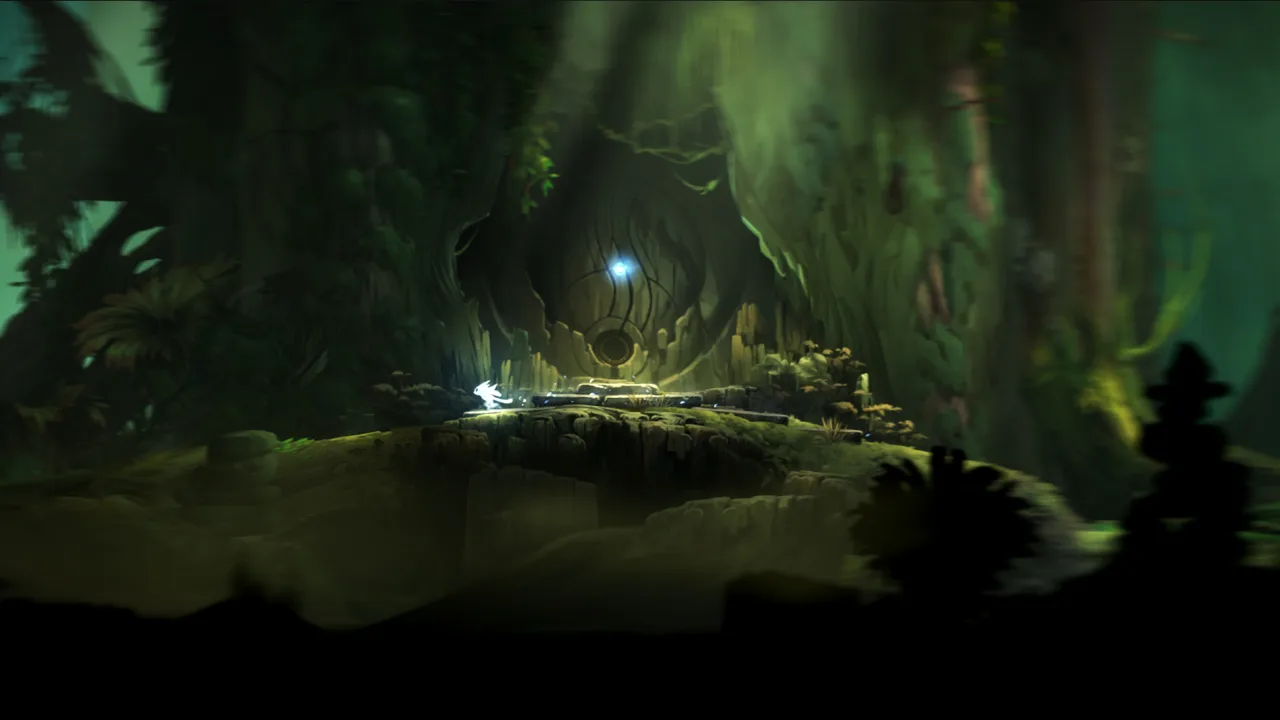 Image: Steam / Moon Studios GmbH
| Action | Keyboard | Keyboard & Mouse |
|---|---|---|
| Move Ori | Arrow keys | WASD |
| Jump | Space | Space |
| Spirit Flame | X | Left mouse button |
| Bash | C | Right mouse button |
| Grab / Glide | Shift | Shift |
| Dash | Ctrl | Ctrl |
| Soul Link | E | E |
| Light Burst | R | R |
| Charge Jump input | Up arrow | W |
| Stomp input | Down arrow | S |
| Map | Tab | Tab |
| Main menu | Esc | Esc |
| Navigate menus | WASD | Arrow keys |
Keyboard-only movement
With the Keyboard preset, the arrow keys move Ori and WASD navigates menus. Spirit Flame and Bash stay on X and C.
Before entering a demanding area, practice finding Space, X, C, and Shift without looking down. The challenge is coordinating movement with the right action while keeping your attention on platforms, enemies, and hazards.
Keyboard and mouse movement
With Keyboard & Mouse, WASD moves Ori, left-click uses Spirit Flame, and right-click uses Bash. The arrow keys become menu-navigation inputs.
This layout moves two frequently used actions away from the keyboard. Try it if reaching the keyboard-only combat buttons interrupts your movement.
Right-click also works as a back or exit action in menus. Remember that its menu function differs from its gameplay function.
Charge Jump and Stomp
The table lists the directional inputs associated with Charge Jump and Stomp. These actions depend on learning the relevant abilities.
Keep regular Jump separate in your memory: Space remains Jump in both keyboard layouts. If you switch PC presets, recheck your directional ability inputs along with movement.
For Ori and the Blind Forest controls on PC, checking the selected preset is the most useful starting point when the correct-looking key produces an unexpected result.
Using Abilities, Soul Link, and Gravity Puzzles
A control chart tells you which button corresponds to an action. Using that action successfully also depends on your abilities, surroundings, and resources.
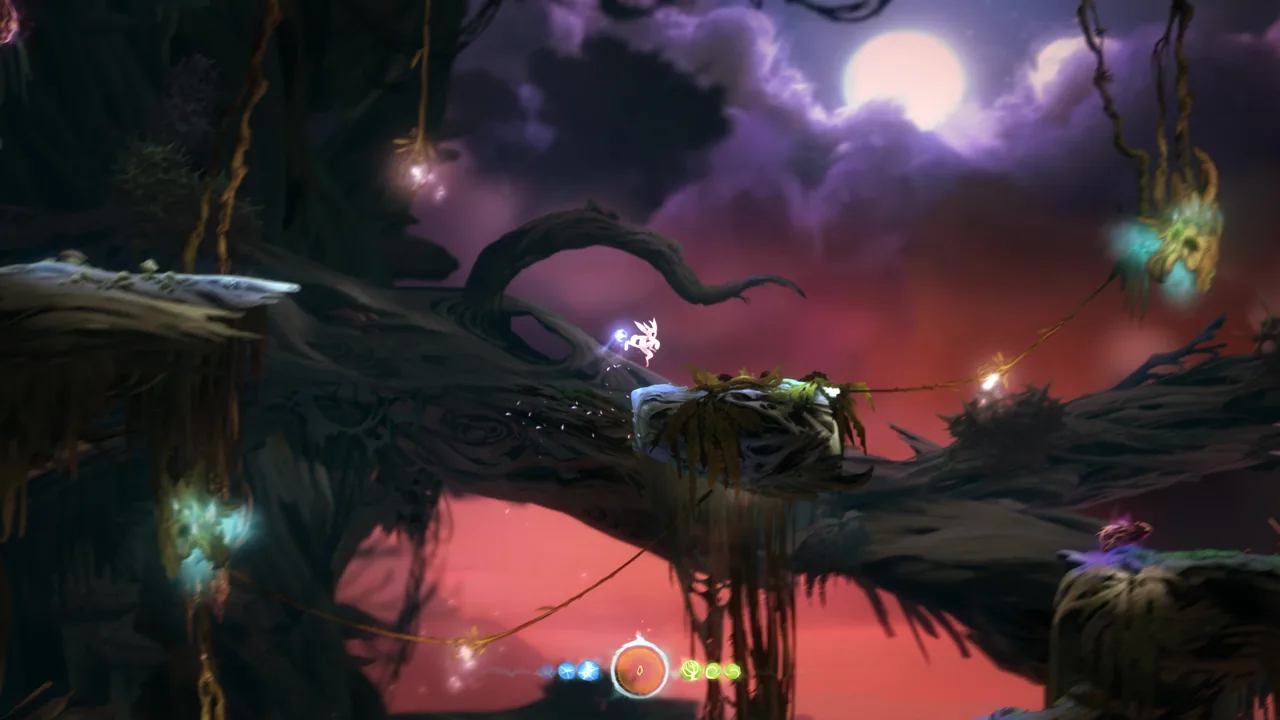 Image: Steam / Moon Studios GmbH
Check ability availability before troubleshooting
Ori begins with a limited set of movements, and more abilities become available as you progress. Seeing an action in a control chart does not mean you can use it immediately.
If a button appears inactive, check whether you have learned that ability. Keep passive upgrades separate from action inputs, too: upgrades such as improved collection range change how exploration works without giving you another button to press.
Practice newly learned actions before combining them with unfamiliar movement. Add the next action once you can reach its input comfortably.
Use Soul Link to reduce repeated platforming
Soul Link is assigned to B on an Xbox controller and E on either PC keyboard layout. Creating one depends on having enough energy and being somewhere the game allows it.
After clearing a difficult stretch, check whether you can establish a Soul Link before attempting the next section. A checkpoint beyond a troublesome jump can save repeated trips through obstacles you have already mastered.
Keep an eye on energy while exploring. Spending time looking for a saving opportunity is frustrating when you reach it without enough energy to use it.
Some ability-tree upgrades reduce Soul Link costs or improve energy collection. Consider those upgrades if limited saving opportunities are making repeated attempts more tiring.
Handle Forlorn Ruins gravity changes deliberately
The Forlorn Ruins can make familiar Ori and the Blind Forest controls feel disorienting. Carrying the Light Vessel changes how you interact with the area's gravity surfaces, and releasing it returns gravity toward normal.
Break each transition into a clear sequence:
- Check the surface you are standing on.
- Identify the next safe landing area.
- Decide whether you need to keep carrying the vessel.
- Release it only after considering the resulting fall.
- Use an available saving opportunity after completing a difficult section.
Dropping the vessel can free you to use abilities that carrying it restricts, and the vessel can follow you after being set down. Use that flexibility when planning a route.
Also account for the protection it provides around the ruins' hazardous surfaces. Set it down on safe footing before experimenting with another movement.
Avoid changing several inputs at once while learning a gravity transition. Watch the direction Ori falls, then adjust your next attempt around that movement.
Fixing Control Problems and Reducing Strain
When Ori and the Blind Forest controls feel wrong, narrow down the symptom before changing settings. Unexpected movement, unavailable abilities, and delayed input need different checks.
| Problem | What to check | Next step |
|---|---|---|
| WASD does not move Ori | Selected PC preset | Use arrow keys in Keyboard mode, or select Keyboard & Mouse |
| X or C does not perform the expected action | Keyboard versus Keyboard & Mouse | Check whether Spirit Flame and Bash are assigned to mouse buttons |
| An ability input does nothing | Whether the ability has been learned | Check your available abilities |
| Soul Link will not activate | Energy and the saving location | Check your energy and move to a permitted location |
| Xbox One controller makes Ori run left on Windows 10 | Installed game updates | Update the original PC game |
| Fullscreen input feels delayed | Game updates and VSync setting | Update, then compare responsiveness with VSync enabled and disabled |
Install updates before chasing older controller bugs
Updates to the original PC release addressed several input problems. Patch 1 reduced fullscreen input delay with VSync enabled and improved handling of controller triggers and buttons. Patch 2 corrected a third-party controller regression.
Patch 3 fixed an Xbox One controller issue on Windows 10 that made Ori run left, along with vibration problems affecting some controllers.
If those symptoms match your experience, update the game before spending time changing your control setup.
Work around the limits of fixed presets
The PC control schemes covered here use fixed presets rather than a full in-game remapping system. Compare the available layouts before committing to longer sessions, especially if simultaneous inputs or held buttons strain your hands.
Try the mouse layout to move Spirit Flame and Bash off the keyboard. Try a controller if its button placement is more comfortable. Take breaks when repeated escape sequences or platforming attempts become physically demanding.
Passive upgrades that collect spirit light from farther away can reduce extra movement. Difficulty options can also reduce incoming damage and enemy durability, easing combat pressure while you practice.
If you become stuck after a bad save, the original PC game's updated save system provides access to up to five previous save points per slot. Highlight the save slot and press Up to access its backups.
FAQ
What are the basic Ori and the Blind Forest controls?
On an Xbox controller, move with the left stick, jump with A, use Spirit Flame with X, Bash with Y, and create a Soul Link with B. On PC, Keyboard mode uses arrow-key movement; Keyboard & Mouse uses WASD. Both use Space to jump.
Can you remap the controls in the game?
The PC presets covered here are fixed. You can choose Controller, Keyboard, or Keyboard & Mouse, with QWERTY and AZERTY keyboard variants. Compare those layouts to find comfortable access to movement and abilities.
Why does Bash use a different button on PC?
Bash changes with the selected preset. Keyboard mode assigns it to C, while Keyboard & Mouse assigns it to the right mouse button. Check the Controls menu if you have switched layouts.
Why do the controls feel reversed in Forlorn Ruins?
The Light Vessel changes gravity interactions around the ruins' special surfaces. Carrying and releasing it changes your movement orientation. Plan the landing before releasing the vessel, then watch Ori's fall direction before making the next move.
Continue with
 Ori and the Blind Forest Resolution Bug: PC Fix GuideFix the Ori and the Blind Forest resolution bug with DPI scaling steps, desktop resolution checks, and fullscreen tips for the Windows PC game. Start here.
More in Support
See all SupportPopular pages

Ori and the Blind Forest Can You Play After Completion?
Ori and the Blind Forest can you play after completion? Learn how saves influence backtracking, missable achievements, collectibles, and your 100% cleanup.

Ori and the Blind Forest Forlorn Ruins: Puzzle Guide
Master Ori and the Blind Forest forlorn ruins with gravity puzzle solutions, Keystone routes, secret locations, and tips for escaping Kuro. Find your way.
Ori and the Blind Forest Abilities: Unlocks & Builds
Master Ori and the Blind Forest abilities with skill unlock locations, practical combat tips, and ability point priorities for easier exploration of Nibel.
Ori and the Blind Forest Energy Cell Locations: Guide
Find Ori and the Blind Forest energy cell locations by area, solve laser and crusher puzzles, and check missable pickups before moving on through Nibel.
Join the community
Game links and player communities: